

Tech Tutorial: 2026 Update
How to Pair Your Phone with INFINITI Bluetooth & Wireless Apple CarPlay
Ditch the cables and stay connected with this step-by-step integration guide for all modern models.
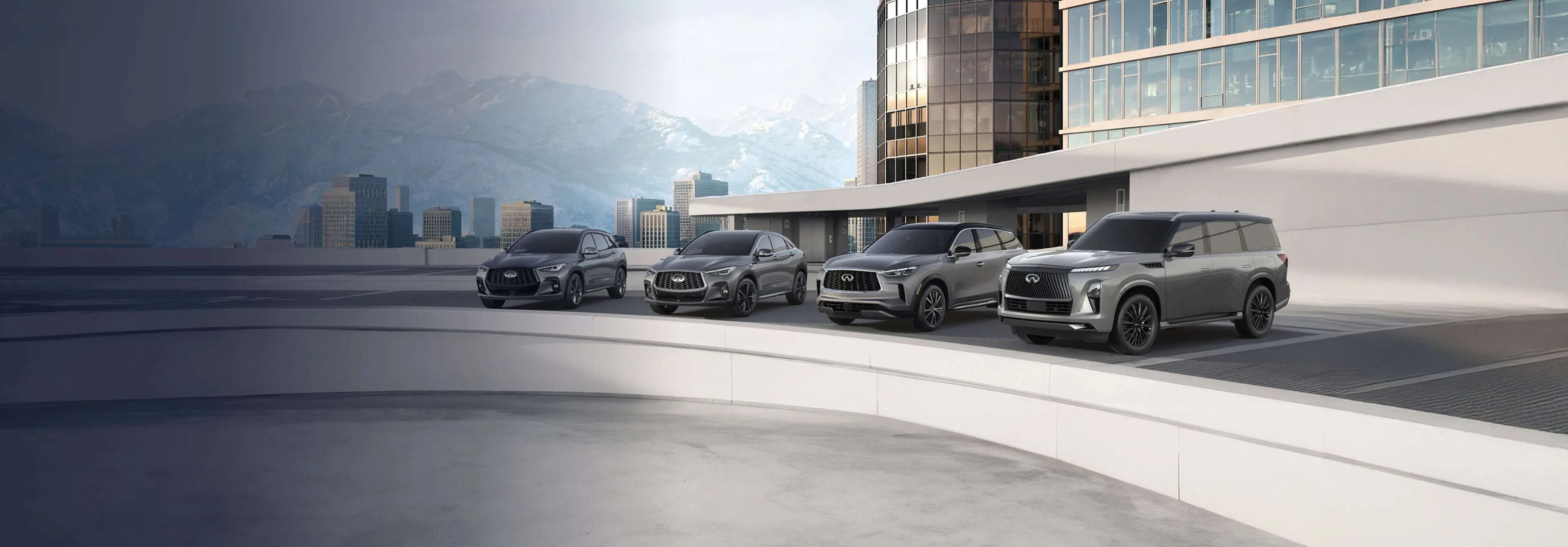
The days of fumbling with tangled cables are over. Modern INFINITI models—specifically the **2026 QX80** and **QX60** featuring **Google built-in**—now offer the most seamless smartphone integration in the brand's history. Whether you are driving the agile Q50 or the flagship QX80, getting your phone to talk to your InTouch™ system is the first step to a premium drive.
Model Specifics: Which System Do You Have?
Before pairing, identify your system to ensure you follow the correct steps:
- 2025-2026 QX80 & QX60: Features the 14.3-inch Monolith display with Google built-in. Supports wireless Apple CarPlay® and wireless Android Auto™.
- 2022-2025 QX50, QX55, & Q50: Dual-screen InTouch™ system. Supports wireless Apple CarPlay but requires a USB cable for Android Auto.
- 2020-2021 Models: Many are eligible for a complimentary dealer-installed wireless CarPlay upgrade. Contact our service center for details.
For the iPhone User: Wireless Apple CarPlay
The setup uses a "handshake" between Bluetooth and Wi-Fi. Follow these steps while parked:
- Activate Bluetooth: On your iPhone, go to Settings > Bluetooth and ensure it is on.
- Infotainment Setup:
• Standard InTouch: Press MENU > Connections > Devices > Add New.
• Google Built-in (2026 QX80): Tap the Phone icon on the home screen > Add Phone. - The Handshake: Select your vehicle's name (e.g., "MY-QX80") on your iPhone. Match the PIN codes on both screens.
- Enable CarPlay: When prompted on your iPhone, select "Use CarPlay." The car will ask to enable the wireless connection; select Yes.
For the Android User: Wireless & Wired Auto
Android Auto capability varies by model year. On the 2026 QX80 and QX60, this connection is now fully wireless.
- Step 1: On your phone, ensure Bluetooth and Wi-Fi are toggled ON.
- Step 2: Navigate to Settings > Bluetooth > Add New on your INFINITI display.
- Step 3: Select your phone. For 2026 models, a prompt will appear asking to "Start Android Auto." Confirm on both the phone and the car.
- Step 4: Crucial Step: "Allow access to contacts" on your phone to enable Google Assistant to make calls via voice command.
Troubleshooting: 2026 Tech Fixes
| Problem | The Fix |
|---|---|
| Google Maps is slow (2026 models) | The 2026 QX80 uses 5G connectivity. If lag occurs, check the In-Vehicle Data signal strength in the top-right corner of the screen. |
| CarPlay icon is grayed out | Ensure Siri is enabled. Apple restricts CarPlay if Siri is disabled for safety reasons. |
| Connection dropping | Wireless CarPlay/Android Auto uses Wi-Fi. Ensure your phone's "Personal Hotspot" is turned OFF, as it can interfere with the car's connection. |
| System won't reboot | Perform a "Hard Reset": Hold the Audio Volume knob for 10-15 seconds until the INFINITI logo reappears. |
Pro Tip: 2026 INFINITI models now support Over-the-Air (OTA) Updates. Check Settings > Information > System Software to ensure your InTouch system is up-to-date for the best Bluetooth stability.
Still having trouble? Visit **INFINITI of Beachwood** for a complimentary tech check. Our product specialists can walk you through the pairing process for your specific model in person.